Imagine this: you’re in the middle of an epic gaming session, adrenaline pumping, when suddenly your PlayStation 4 controller blinks that dreaded low battery warning. Panic sets in as you realize victory is slipping through your fingers faster than a poorly timed jump. But fear not! Charging your controller is easier than finding a hidden treasure in your favorite game.
Methods For Charging PlayStation 4 Controller
Charging a PlayStation 4 controller can be straightforward with various options available. Here are the most common methods.
Using a USB Cable
Using a USB cable presents a simple way to charge the controller. Connect one end of the cable to the controller’s charging port and the other end to a USB power source, like the PS4 console or a wall adapter. The controller’s light bar indicates charging status; an orange light means it’s charging, while a white light shows it’s fully charged. Ensure the console remains powered on or in rest mode to keep the charging process active. This method provides a reliable charge during gameplay, allowing for uninterrupted gaming sessions.
Charging Dock Option
A charging dock offers a convenient alternative for charging the PlayStation 4 controller. Place the controller into the dock, ensuring it aligns with the connectors. Most docks feature LED indicators, showing charging progress. Consider using official or certified docks for optimal charging efficiency. These docks provide a dedicated space for controllers, reducing clutter and ensuring they charge when not in use. Investing in a dock can enhance the gaming setup while ensuring controllers are always ready for action.
Understanding Battery Life
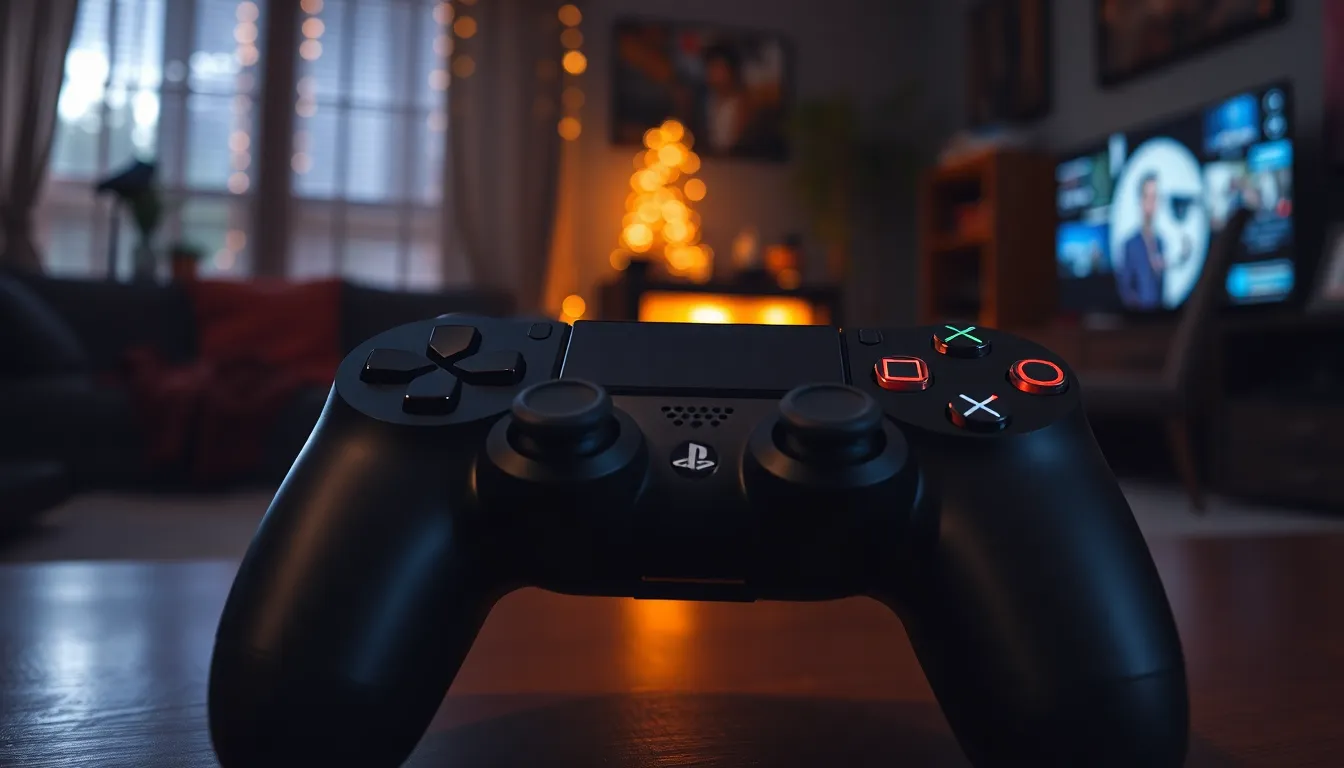
Knowing how the PlayStation 4 controller’s battery functions enhances gaming experiences. Players gain insight into when to charge their controllers and avoid interruptions during gameplay.
Indicator Lights Explanation
The controller features indicator lights to show battery status. A solid light means the controller charges properly. When the light slowly blinks, it signals a low battery. Fast blinking indicates that the controller needs immediate charging. Recognizing these patterns helps gamers stay prepared for long sessions.
Charging Time Expectations
Charging a PlayStation 4 controller typically takes about two hours for a full charge. Different variables may affect this duration, including the method used. A direct USB connection often provides faster results than using a charging dock. Generally, gamers can expect to resume play shortly after the charging process begins.
Troubleshooting Charging Issues
Charging issues may arise with the PlayStation 4 controller. Identifying problems early helps maintain gaming sessions.
Common Problems and Solutions
Cable connection problems often lead to charging failures. Ensure the USB cable fits tightly into the controller and power source. Sometimes, using a different cable resolves issues, especially if the original cable shows wear. Charging docks also face connection issues; ensure the dock aligns correctly with the controller’s pins. If the controller doesn’t charge while plugged in, a reset using the small button on the back can offer a solution. A solid light indicates successful charging, while blinking signals problems needing attention.
When to Replace the Battery
Battery longevity varies; typical lifespan ranges from 2 to 4 years. Signs of battery wear include noticeably reduced playtime and frequent charging. If the controller no longer holds a charge or loses power rapidly, replacement becomes necessary. Checking the warranty is advisable before proceeding with replacement, as some controllers may still be covered. Opting for an official replacement battery ensures compatibility and performance. Professional assistance may also be available to facilitate the replacement process, providing added convenience.
Charging a PlayStation 4 controller doesn’t have to be a stressful experience. By understanding the various charging methods and battery indicators, gamers can ensure they’re always ready for their next session. Whether using a USB cable or a charging dock, keeping an eye on battery status can prevent interruptions.
It’s essential to troubleshoot any charging issues promptly to maintain optimal performance. Knowing when to replace the controller’s battery can also extend its lifespan. With these tips in mind, gamers can enjoy uninterrupted gameplay and make the most of their gaming adventures.